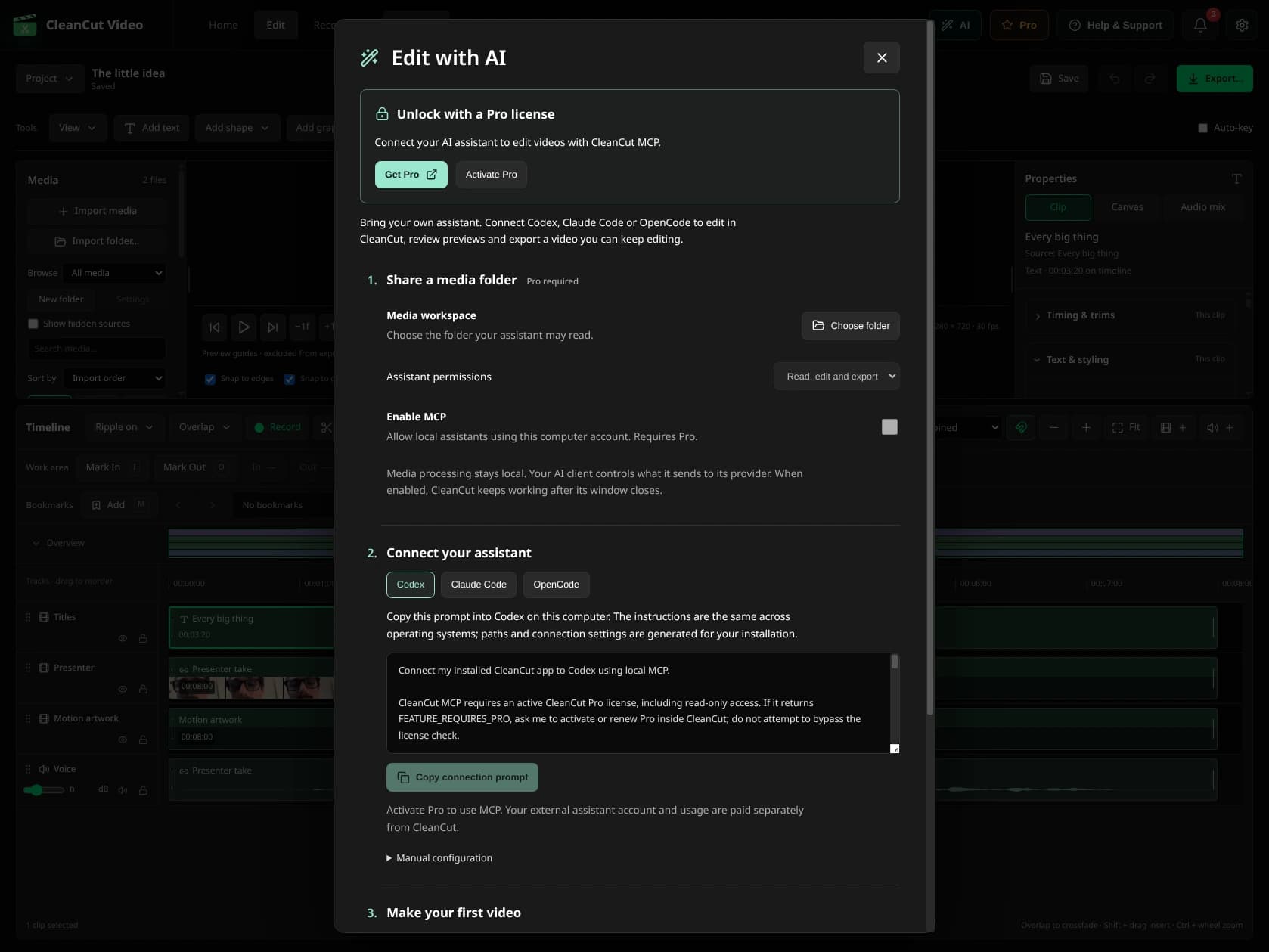
Set up the connection.
- Check Releases and install a build that includes CleanCut MCP. Finish the media-engine setup inside the app.
- Activate your Pro license, then open the AI screen.
- Choose a media workspace. Start with a folder containing only the project files you want the assistant to access.
- Select read-only or editing access and enable MCP.
- Choose Codex, Claude Code or OpenCode. Copy connection prompt and paste it into that local client. Preserve your other MCP servers when merging configuration.
- Reconnect or restart the client as it requires. Ask it to call cleancut_get_status and confirm the available tools.
Try a small, specific request.
“Import these two clips in this order. Add a native title at the beginning, save a checkpoint and export a first version. Show me a frame to review, and give me the editable project too.”
Use filenames and an output folder the assistant is allowed to access. For spoken content, install the local transcription engine/model before requesting a transcript.
Continue in the app.
Open AI → Shared projects → Open in timeline to edit the managed document. A portable copy saved by the assistant is an independent delivery, not the same shared document.
If you disable MCP and restart, AI → Shared projects → Load saved projects can recover the workspace for manual editing without Pro.
If it doesn't connect.
- FEATURE_REQUIRES_PRO: activate or renew Pro in CleanCut.
- ENGINE_UNAVAILABLE: install the required engine/model inside the app.
- A web chat cannot find the executable: use a compatible local client.
- An application moved or was updated: copy a fresh connection prompt.
- Do not share license keys, session credentials or private media when asking support for help.