Start with what you want to show.
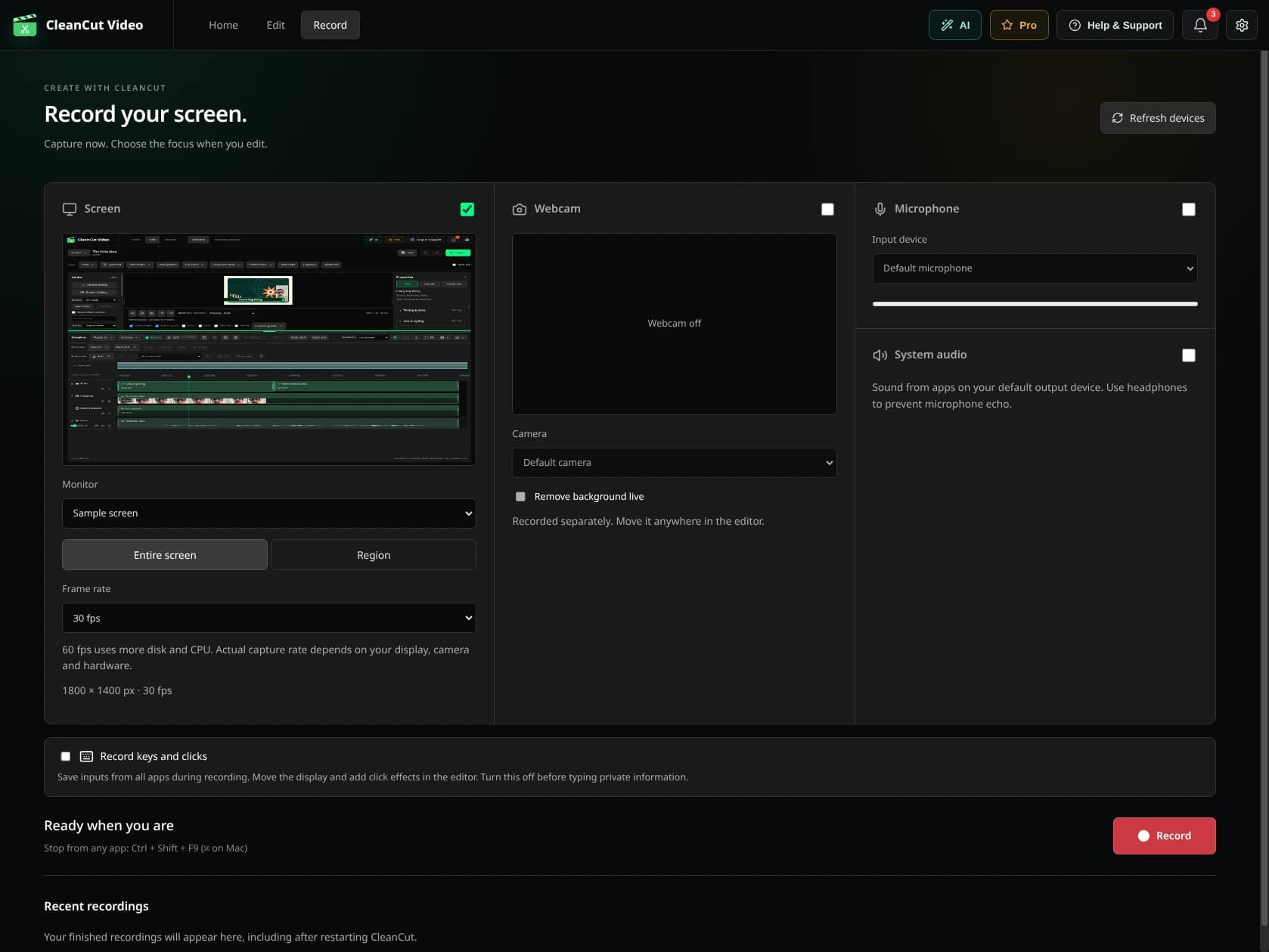
Open Record from the home screen, choose the available screen or capture source and select your camera and microphone. Record a short test first to check framing, levels and synchronization.
System audio and screen or region selection depend on the operating system, available capture backend and permissions. The app shows what is available on your machine.
Guide the viewer's attention.
- Add zooms to focus on a control or detail.
- Adjust the webcam layer and use local background removal where supported.
- Add blur or an opaque cover to selected regions.
- Use cursor, click and keyboard effects when the recording includes the required capture data.
Your recording is the beginning.
Bring the recording into the project timeline. Cut pauses, add another take, place native titles and mix a soundtrack. Save the editable project and export a local MP4.
A few useful boundaries.
An ordinary imported MP4 does not contain CleanCut's separate cursor or keyboard metadata. Effects based on that data require a supported CleanCut recording.
Blur is a visual effect, not a promise of secrecy. Review the export before sharing, and use an opaque cover when the pixels must not be visible. Source files and audio remain separate considerations.