Start with your next edit.
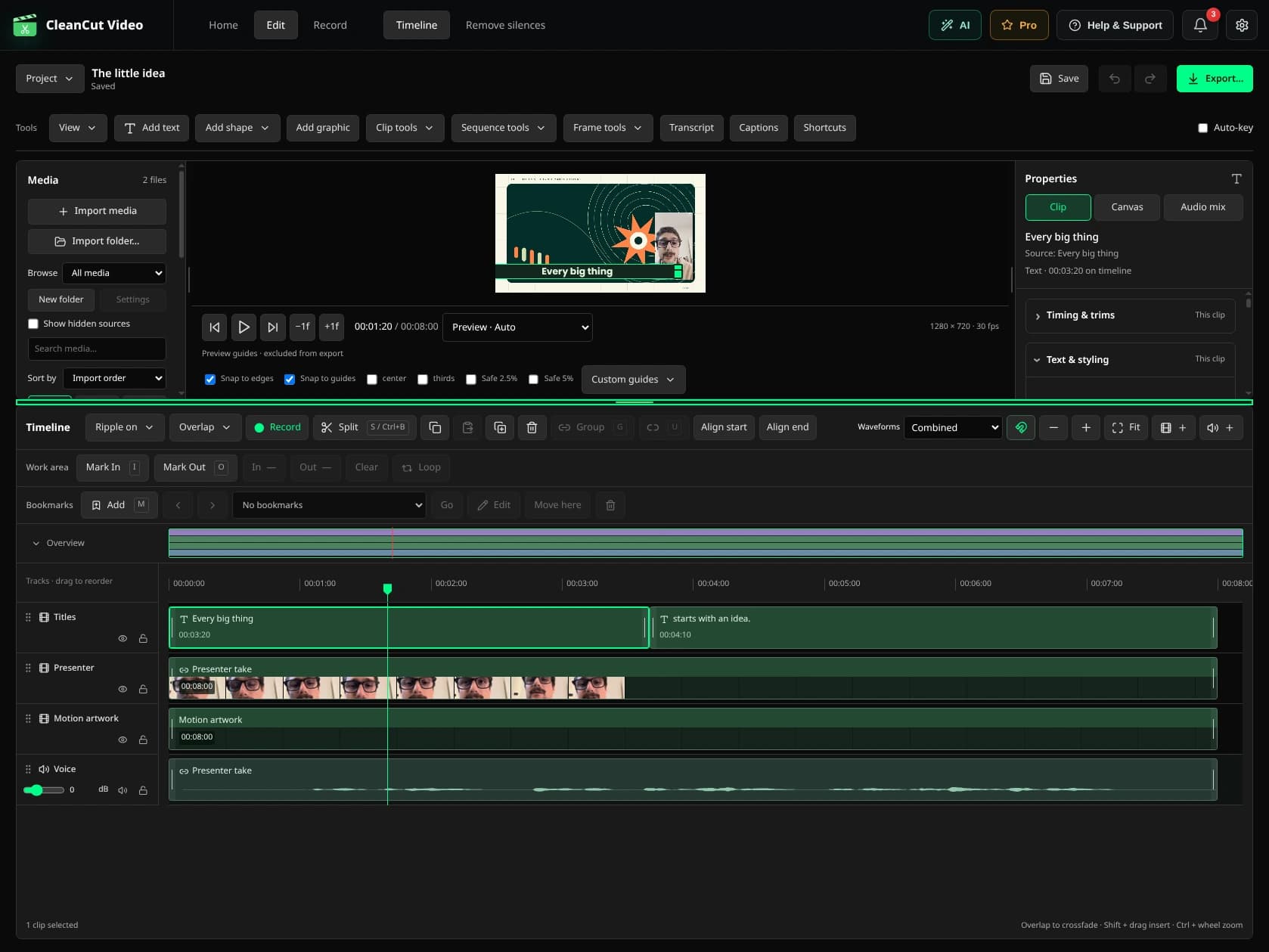
CleanCut 1.5 adds more ways to shape a video, work with speech, finish the sound and move a project between computers. This guide follows those workflows rather than presenting a wall of release-ticket names. Each chapter tells you where to find the controls in the desktop app.
The release contains 161 tracked additions and improvements. That count includes editing tools, usability improvements and the rendering work that makes those tools behave consistently. It does not mean 161 separate buttons, nor does every feature use AI. The interactive Explore page lets you browse the layout, play a sample and open explanations without importing or processing anything.
Manual timeline editing and watermark-free export remain Free. Automated speech tools retain their existing Pro, trial and caption-quota rules; batch silence removal, face tracking, automatic reframing and video cutouts require Pro. Stabilization is Free. Optional local engines and models are managed in Settings. MCP access requires an active Pro license even for tools whose manual UI is Free. Desktop menu names below are shown in English so you can locate them in the app.
Mark the part you want to work on
Where to find it: Timeline → Work area and Bookmarks; Frame tools.
Move the playhead to the beginning of a passage and choose Mark In, then mark its end with Mark Out. CleanCut remembers this work area with the project. Loop it while you judge a cut or animation, or export just that range when you need to send a short review instead of the entire sequence.
Named bookmarks keep useful moments easy to find: a good take, a chapter boundary or a detail to revisit. Add a bookmark at the playhead, give it a meaningful name, and jump between markers without changing your clips. In Frame tools, save the selected source frame at its original resolution, or insert a freeze frame on the timeline when a picture needs to stay on screen longer.
Get the framing right
Where to find it: Properties → Clip and Canvas; preview guides.
Center lines, thirds and safe-area guides help you place a face or title. They are editing aids and stay out of the export. Save your own guide presets for a recurring composition, then enable snapping to line up layers with those guides and the edges of the canvas.
Correct a sideways shot with a quarter-turn, flip it horizontally or vertically, or set an exact rotation angle. Change width and height independently when the composition calls for it, and lower opacity to let another layer show through. Position uses X for left/right and Y for up/down; the middle of the canvas is 50%, 50%.
Cropping a source chooses which part of that picture a clip uses. Cropping the project canvas changes the framing of the whole composition and rebases its layers. These are different decisions: use a source crop to remove an unwanted edge of one shot, and a canvas crop when the final video itself needs a different frame.
Make movement editable
Where to find it: Right-click a clip → Add effect track; Auto-key.
Right-click a clip and choose Add effect track to reveal an animation lane beneath its track. Position keeps X and Y together in one lane. Width, height, rotation, opacity and audio gain have their own controls. Put a keyframe where a value should change, move farther along the timeline, then set its next value. You can also reposition the picture directly in the canvas.
Linear keys change at a steady rate; hold keys keep a value until the next key. Eased interpolation makes a move start or finish more gently. Open the curve editor when you want to shape the timing yourself with Bézier handles. Auto-key records changes at the playhead, while disabling animation lets you compare the static result without throwing away the saved keys.
Visual effect parameters can have keyframes too, so a blur or color adjustment can change during a shot. Slide, zoom and pop presets are useful starting points for entrances and exits. They create editable motion rather than a flattened video: adjust the direction, timing and easing, or refine the resulting keys afterward.
Balance the sound before adding polish
Where to find it: Properties → Audio mix; audio clip properties.
Quiet recordings can be raised above unity gain instead of stopping at their original level. Measure source loudness or the full mix to see integrated loudness and true peak, then normalize to an explicit target when you need consistent delivery. Peak limiting can keep the loudest moments under a ceiling; normalization and limiting solve different problems, so check the result by listening as well as reading the numbers.
Short de-click ramps soften the edges of hard speech cuts. Equal-power audio fades provide another way to shape joins and entrances. Pan a clip or its audio track to place sound left or right, and use channel selection and downmix controls when the useful microphone is on just one source channel.
Switch waveforms from the combined display to source channels when you need to inspect the recording. Audio processors form an ordered chain: reorder them to change which stage receives the previous stage’s output, or bypass a stage to compare it with the original settings. A louder result is not automatically a clearer one; keep the voice comfortable against the rest of the mix.
Give dialogue its own finishing pass
Where to find it: Right-click an audio track → Add effect track.
Speech EQ changes the tonal balance of dialogue. A compressor reduces level differences, a noise gate quiets low-level gaps, and a de-esser controls sharp sibilant sounds. Add these from the audio track’s effect chooser, set their properties in the same window, and apply them. Effects that need an audio preview show progress while the desktop app prepares it.
Clean voice adds a reusable chain of editable stages rather than hiding the recipe behind one permanent transformation. Local noise reduction includes a before/after audition so you can judge the treatment on your own recording. For a music bed, automatic ducking lowers the chosen music under speech and brings it back between passages, saving repeated manual volume moves.
Record the missing line in place
Where to find it: Timeline → Record.
Put the playhead where the new narration belongs and record a voiceover into the project. Choose the input and adjust its gain before the take. Pause when you need a moment, resume the same take, then listen back before keeping it on an audio track. The desktop app requests the microphone permissions your operating system requires; the website tour never opens a microphone.
Use the words to find the edit
Where to find it: Transcript; Clip tools; Sequence tools.
The transcript panel connects source words to the clips using them on the timeline. Click a word to find its moment, search for a phrase, and correct the stored wording when recognition got it wrong. Source timing and timeline timing are kept distinct, so a word can still be located after the clip has moved or been cut.
Select words to remove a passage, or find a repeated word or phrase and delete the matching sections. Manual transcript editing is Free. When the words are right but their order is wrong, Keep & reorder passages lets you choose which source ranges to keep and in what order.
Build sequence from clips assembles chosen passages from one or more takes into a new sequence of copies. It is useful for making one explanation from several attempts without dismantling your originals. Speech cuts can snap to nearby quiet boundaries to make the joins less abrupt. Always listen across the new joins: text is a helpful route into an edit, not a substitute for hearing it.
Choose speech assistance when you need it
Where to find it: Settings → Local models; Remove silences; Transcript.
Optional local models live in Settings, opened with the cogwheel beside notifications. Install or manage the speech and vision add-ons there instead of keeping setup controls in the editing workspace. Local voice activity detection offers a speech-based way to find pauses inside the existing Remove silences workflow. Review its proposed cuts with the same padding and minimum-pause controls before applying them.
Aligned words retain quality information so the app can distinguish stored timing from a more carefully aligned result. Force alignment refines the relationship between recognized words and the audio. Local speaker labeling marks turns so you can follow who is speaking; labels are editing aids and should be reviewed rather than treated as a verified identity.
Filler detection and retake selection can work with words in a project, keeping the existing cleanup rules rather than creating a second, competing removal tool. Automated speech actions keep their Pro restrictions, cleanup trials and caption quotas. Batch silence removal is Pro; single-file volume-based silence removal remains Free. Model availability and downloads depend on the action you choose.
Keep captions editable until delivery
Where to find it: Captions and Sequence tools.
Captions are native project cues with text and timing, not just pictures burned into a clip. Generate them from stored transcript words, then edit the wording and cue boundaries against the waveform. Import an SRT or VTT file if the words already exist elsewhere, and export SRT or VTT when your publishing platform needs a separate subtitle file.
Karaoke-style highlighting follows the words in native project captions. Apply a caption style to the track or the project when every cue needs the same treatment, instead of restyling each line. Recognition and caption generation retain their existing allowances; importing or correcting your own text does not turn this website tour into a transcription service.
Make titles fit the picture
Where to find it: Properties → Text & styling.
Choose a packaged or installed font directly in the font selector. A project using an installed-only font may need a replacement on another computer. Letter spacing controls how open the words feel, while line height changes the distance between lines. Text-box padding gives lettering room against its background, and box alignment places the text within that space. These settings remain editable with the title or caption.
Organize the sources without rebuilding the edit
Where to find it: Media panel → source menu → Edit source.
Search and sort the media library to find a source, select several assets when placing a sequence, and name a source independently from the clips that use it. Nested bin folders organize larger projects. Folder import can include subfolders and preserve their hierarchy, so you do not have to recreate an existing collection by hand.
Replace a source when a revised recording should appear in all its clip instances. Removing an asset from the visible bin is different from discarding a picture that a used clip still needs: existing timeline uses are preserved. Source actions make those choices explicit so library housekeeping does not silently dismantle the sequence.
Edit source opens a preview where you can set trim and crop defaults for future clips, or make a separate edited copy. The original remains available. If the source has uneven frame spacing, the app can warn about variable frame rate and offer a constant-frame-rate copy. Use that copy when predictable seeking and frame edits matter; converting it does not invent extra detail in the recording.
Point out the detail that matters
Where to find it: Add shape and Add graphic.
Use arrows to point at a control, rectangles to frame an area, and ellipses to circle a detail. Polygons give you a less regular outline, while speech bubbles connect a short note to a person or object. Shapes can be positioned and rotated in the canvas; double-click an ellipse to add text when it should work as a callout.
Search the emoji library for a small visual cue, or browse sticker packs for a more expressive overlay. These are clips on the timeline, so their position, timing and layering remain part of the edit. Check an asset’s source and license when using material from a pack or provider.
Deliver the right kind of file
Where to find it: Export; Project → Project details.
The finished picture is not the only possible delivery. Export the assembled audio mix when you need sound alone, or make an animated GIF for a short loop. Choose output quality and codec settings for the destination, save export settings as presets, and use a format that supports transparency when another editor needs the alpha channel. Project details also hold descriptive information for the project and supported output metadata.
Boost is an optional export mode in the main timeline editor. Its confirmation explains that CleanCut will use more of the computer while rendering, so it is best used when you can leave the machine to finish. The app budgets workers from CPU and available memory while keeping the chosen codec and quality settings. It is not a hard operating-system resource limit or a promise of GPU acceleration; the benefit depends on the project and machine.
Move the project with its ingredients
Where to find it: Project → Collect project files; project JSON actions.
A .cleancut file describes the edit; it does not automatically contain every original recording. Collect project files gathers dependencies into a folder or ZIP for delivery. Copy collection leaves the originals where they are. The separate move-media option is explicit about relocating them, so choose it only when you actually want to change where your sources live.
Documented project JSON gives other tools and automated workflows an interchange format for the edit. Export it to inspect or transfer the document, or import a compatible document back into CleanCut. Media and font availability still matter: a list of clips cannot replace the pictures, sound and installed fonts those clips refer to.
Keep the timeline understandable as it grows
Where to find it: Timeline toolbar and track context menus.
Ripple editing makes gap handling a consistent choice across trims, deletes, speed changes and speech cuts. Set whether it affects the relevant linked tracks or all tracks, and protect tracks that should stay put. Close gap removes a selected empty range when you want to make that decision directly. Clip placement can allow an overlap or find the next available gap before inserting a linked selection.
Hide a video track to compare the composition without it, or lock a track to protect it from edits. Resize track heights to give important material more room, and show or hide audio waveforms according to the task. Filmstrips make video clips recognizable by their pictures instead of filenames alone; the timeline overview gives you a small map of the whole sequence when you are zoomed into one detail.
Join adjacent clips combines compatible pieces without asking you to rebuild them manually. History and checkpoints offer another way to revisit the project’s decisions alongside Undo and Redo. These controls are most useful when track names, source names and bookmarks explain what the material is for, rather than merely where it was imported from.
Build a look in an ordered effect stack
Where to find it: Add effect track; Properties → selected effect.
Visual effects form an ordered stack, so the output of one adjustment feeds the next. Brightness, contrast and gamma affect different parts of the picture’s tonal response. Hue rotates the colors, saturation changes their intensity, and temperature shifts the overall picture warmer or cooler. Start with small changes and compare against the untreated shot.
Clip-wide Gaussian blur softens the whole picture. Pixelation breaks it into blocks, sharpening emphasizes detail, and a vignette shapes the edges. These are distinct from a timed regional blur used to cover one area. Effects have their own rows and editable settings, so you can revisit a look instead of exporting and importing a flattened copy.
Copy and paste an effect stack when several shots need the same starting point. Save user presets to reuse or share a look. Adjustment layers apply effects over a chosen range: scope one to a clip or track, or let it affect multiple tracks when the entire composition needs the treatment. Chroma key removes a chosen background color; review the edges and choose an alpha-capable export if the transparent result needs to remain transparent.
Choose how one shot becomes the next
Where to find it: Overlapping clips → Edit transition.
Transition instances keep the chosen transition and its timing attached to the join between clips. Dip to black or white gives a passage a clear punctuation mark. Wipes reveal the incoming shot from the left, right, top or bottom; pushes move the pictures across the frame in those same four directions.
Zoom transitions offer a change in scale rather than a directional reveal. Adjust the transition’s easing when the movement should start or finish more gently. Review both ends of the overlap and listen to the audio as well: a visual transition should support the cut rather than hide an unfinished one.
Keep layered work intact
Where to find it: Properties → Look & layout; preview and export.
A shared description of the composition helps preview and export follow the same editing decisions. Complex scenes can use a bounded offscreen browser renderer to combine supported layers. These rendering improvements work behind the editor’s controls; you do not need to rebuild your scene in another application.
Layer blend modes change how one picture combines with the layers beneath it. They offer another route to a composite besides opacity alone. Keep the layer order in mind and check the finished frame, especially when the project mixes footage, graphics, text and adjustment layers.
Use local vision for a specific editing job
Where to find it: Clip tools → Framing & camera movement or Remove background; Settings.
Local face landmarks provide tracking information from imported footage. Automatic reframing can use the subject’s movement when making a portrait or square composition, and stabilization can reduce the movement in a handheld shot. Check the framing throughout the result: a moving subject can leave the picture, and a steadier image may need a tighter crop.
For video cutouts, choose person background removal or higher-quality RVM matting when its model is available. SAM2 object selection lets you indicate an arbitrary object and track it through the source range. The desktop workflow can create transparent pictures and a matte while keeping the original video and linked sound available.
Face tracking, automatic reframing and video cutouts require Pro and their relevant local models. Stabilization is Free and uses the bundled media engine rather than a vision model. Settings includes the supported ONNX acceleration choices; available providers depend on the machine and runtime. A model download, a local processing job and an editable timeline action are separate steps. The website explorer explains them without downloading a model or processing the sample video.
Arrange the editor around your work
Where to find it: View; Shortcuts; drag panel dividers.
The editor’s keyboard commands share one command registry, so menu actions and shortcuts address the same operations. Open Shortcuts to inspect or rebind combinations to suit the way you edit. Space toggles playback while you work, without forcing you to click back into the preview first; ordinary text entry keeps its normal behavior.
Customize the timeline toolbar to keep frequent controls visible and move the others into More. Drag panel dividers to resize the media library, preview, properties and timeline; the app remembers the arrangement on this computer. Save workspace presets when caption editing, audio work and general cutting need different amounts of space, then switch layouts instead of rebuilding the workspace each time.
What the 161 count covers.
The following index lists every tracked addition or improvement in this release, grouped in the chapters above. Shared controls, bug prevention and rendering infrastructure are counted as improvements, not presented as new standalone products.
- Persist and edit In/Out work-area markers — Mark the part you want to work on
- Loop playback inside the work area — Mark the part you want to work on
- Export only the selected work area — Mark the part you want to work on
- Add persistent named bookmarks — Mark the part you want to work on
- Save an original-resolution source frame — Mark the part you want to work on
- Insert a freeze-frame clip — Mark the part you want to work on
- Consistent keyboard commands — Arrange the editor around your work
- Let users rebind keyboard shortcuts — Arrange the editor around your work
- Display center and safe-area preview guides — Get the framing right
- Correct clip orientation by quarter-turns — Get the framing right
- Flip a visual clip horizontally or vertically — Get the framing right
- Set a clip constant opacity — Get the framing right
- Rotate a visual clip by arbitrary angle — Get the framing right
- Resize width and height independently — Get the framing right
- Crop an arbitrary source rectangle — Get the framing right
- Crop and rebase the whole project canvas — Get the framing right
- Keyframe effect tracks — Make movement editable
- Animate clip position — Make movement editable
- Animate clip width and height — Make movement editable
- Animate clip rotation — Make movement editable
- Animate audio gain — Make movement editable
- Add eased interpolation — Make movement editable
- Add custom Bézier tangents — Make movement editable
- Expose the curve editor — Make movement editable
- Add auto-key — Make movement editable
- Disable animation while retaining keys — Make movement editable
- Allow gain above unity — Balance the sound before adding polish
- Measure integrated loudness and true peak — Balance the sound before adding polish
- Limit output peaks — Balance the sound before adding polish
- Normalize loudness to an explicit target — Balance the sound before adding polish
- Add automatic de-click ramps at hard speech cuts — Balance the sound before adding polish
- Use equal-power audio fades — Balance the sound before adding polish
- Add stereo pan — Balance the sound before adding polish
- Choose channel and downmix controls — Balance the sound before adding polish
- Display per-channel waveforms — Balance the sound before adding polish
- Reorder and bypass audio processors — Balance the sound before adding polish
- Add speech EQ — Give dialogue its own finishing pass
- Add speech compressor — Give dialogue its own finishing pass
- Add noise gate — Give dialogue its own finishing pass
- Add de-esser — Give dialogue its own finishing pass
- Offer a reusable Clean voice preset — Give dialogue its own finishing pass
- Add local noise reduction with before/after audition — Give dialogue its own finishing pass
- Automatically duck music under speech — Give dialogue its own finishing pass
- Record voiceover at the timeline playhead — Record the missing line in place
- Add voiceover input gain — Record the missing line in place
- Pause and resume a voiceover take — Record the missing line in place
- Read source words in clip and timeline coordinates — Use the words to find the edit
- Show a project transcript panel — Use the words to find the edit
- Correct and search project transcript words — Use the words to find the edit
- Delete selected transcript words — Use the words to find the edit
- Delete a matching word or phrase — Use the words to find the edit
- Keep and reorder selected source passages — Use the words to find the edit
- Assemble passages from multiple takes — Use the words to find the edit
- Snap speech cuts to nearby quiet boundaries — Use the words to find the edit
- Manage optional local models and add-ons — Choose speech assistance when you need it
- Detect speech using local VAD — Choose speech assistance when you need it
- Apply VAD-based pause removal — Choose speech assistance when you need it
- Word timing and alignment quality — Choose speech assistance when you need it
- Force-align recognized words — Choose speech assistance when you need it
- Label speaker turns locally — Choose speech assistance when you need it
- Apply existing filler detection to project words — Choose speech assistance when you need it
- Apply existing retake selection to the project — Choose speech assistance when you need it
- Add native project caption cues — Keep captions editable until delivery
- Generate captions from stored project words — Keep captions editable until delivery
- Edit caption text and timing against a waveform — Keep captions editable until delivery
- Import SRT/VTT captions — Keep captions editable until delivery
- Export project SRT/VTT captions — Keep captions editable until delivery
- Extend karaoke to native project captions — Keep captions editable until delivery
- Apply a caption style to a track/project — Keep captions editable until delivery
- Choose arbitrary packaged or installed fonts — Make titles fit the picture
- Set text letter spacing — Make titles fit the picture
- Set text line height — Make titles fit the picture
- Set text box padding — Make titles fit the picture
- Set text box alignment — Make titles fit the picture
- Search and sort the project media library — Organize the sources without rebuilding the edit
- Place multiple selected assets — Organize the sources without rebuilding the edit
- Name assets and clip instances independently — Organize the sources without rebuilding the edit
- Organize assets in nested bin folders — Organize the sources without rebuilding the edit
- Import a folder of media — Organize the sources without rebuilding the edit
- Replace one source across all clip instances — Organize the sources without rebuilding the edit
- Remove an asset from the bin without losing used clips — Organize the sources without rebuilding the edit
- Open a source trim/crop editor — Organize the sources without rebuilding the edit
- Render an edited source copy — Organize the sources without rebuilding the edit
- Warn about variable frame rate — Organize the sources without rebuilding the edit
- Convert a source to constant frame rate — Organize the sources without rebuilding the edit
- Add an arrow annotation clip — Point out the detail that matters
- Add rectangle annotations — Point out the detail that matters
- Add ellipse annotations — Point out the detail that matters
- Add polygon annotations — Point out the detail that matters
- Add speech-bubble annotations — Point out the detail that matters
- Search and place emoji — Point out the detail that matters
- Search and place sticker packs — Point out the detail that matters
- Export the assembled audio mix — Deliver the right kind of file
- Export an animated GIF — Deliver the right kind of file
- Expose project export quality and codec choices — Deliver the right kind of file
- Remember export settings and provide presets — Deliver the right kind of file
- Export transparent video — Deliver the right kind of file
- Set project/output descriptive metadata — Deliver the right kind of file
- Collect project dependencies into a folder or ZIP — Move the project with its ingredients
- Offer explicit move-media collection — Move the project with its ingredients
- Import/export a documented project JSON document — Move the project with its ingredients
- Make ripple editing a consistent user option — Keep the timeline understandable as it grows
- Close a selected timeline gap — Keep the timeline understandable as it grows
- Hide a video track — Keep the timeline understandable as it grows
- Lock a track against edits — Keep the timeline understandable as it grows
- Choose overlap placement policy — Keep the timeline understandable as it grows
- Resize track height — Keep the timeline understandable as it grows
- Toggle track waveform visibility — Keep the timeline understandable as it grows
- Draw clip filmstrips — Keep the timeline understandable as it grows
- Show a timeline minimap — Keep the timeline understandable as it grows
- Merge compatible adjacent pieces — Keep the timeline understandable as it grows
- Expose project history and checkpoints — Keep the timeline understandable as it grows
- Save custom preview guide sets — Get the framing right
- Snap canvas edits to guides — Get the framing right
- Introduce an ordered visual effect stack — Build a look in an ordered effect stack
- Add brightness controls — Build a look in an ordered effect stack
- Add contrast controls — Build a look in an ordered effect stack
- Add gamma controls — Build a look in an ordered effect stack
- Add hue controls — Build a look in an ordered effect stack
- Add saturation controls — Build a look in an ordered effect stack
- Add temperature controls — Build a look in an ordered effect stack
- Add clip-wide blur — Build a look in an ordered effect stack
- Add clip-wide pixelation — Build a look in an ordered effect stack
- Add sharpening — Build a look in an ordered effect stack
- Add vignette — Build a look in an ordered effect stack
- Copy/paste effect stacks — Build a look in an ordered effect stack
- Save and share user effect presets — Build a look in an ordered effect stack
- Add adjustment layers scoped to one clip/track — Build a look in an ordered effect stack
- Add adjustment layers scoped across tracks — Build a look in an ordered effect stack
- Add chroma key — Build a look in an ordered effect stack
- Animate effect parameters — Make movement editable
- Add slide motion preset — Make movement editable
- Add zoom motion preset — Make movement editable
- Add pop motion preset — Make movement editable
- Generalize transition instances — Choose how one shot becomes the next
- Add dip-to-black transition — Choose how one shot becomes the next
- Add dip-to-white transition — Choose how one shot becomes the next
- Add wipe-left transition — Choose how one shot becomes the next
- Add wipe-right transition — Choose how one shot becomes the next
- Add wipe-up transition — Choose how one shot becomes the next
- Add wipe-down transition — Choose how one shot becomes the next
- Add push-left transition — Choose how one shot becomes the next
- Add push-right transition — Choose how one shot becomes the next
- Add push-up transition — Choose how one shot becomes the next
- Add push-down transition — Choose how one shot becomes the next
- Add zoom transitions — Choose how one shot becomes the next
- Shape transition easing — Choose how one shot becomes the next
- Matching preview and export — Keep layered work intact
- Layered rendering — Keep layered work intact
- Implement layer blend modes — Keep layered work intact
- Track face landmarks on imported footage — Use local vision for a specific editing job
- Automatically reframe to portrait or square — Use local vision for a specific editing job
- Stabilize handheld footage — Use local vision for a specific editing job
- Remove people backgrounds in imported video — Use local vision for a specific editing job
- Add higher-quality RVM matting — Use local vision for a specific editing job
- Select and track arbitrary objects with SAM2 — Use local vision for a specific editing job
- Local processing acceleration — Use local vision for a specific editing job
- Customize timeline toolbar — Arrange the editor around your work
- Resize and persist editor panels — Arrange the editor around your work
- Save workspace-layout presets — Arrange the editor around your work
- Boost export — Deliver the right kind of file